Tutorial — Delphi — Shell Extension — Context Menu
Summary
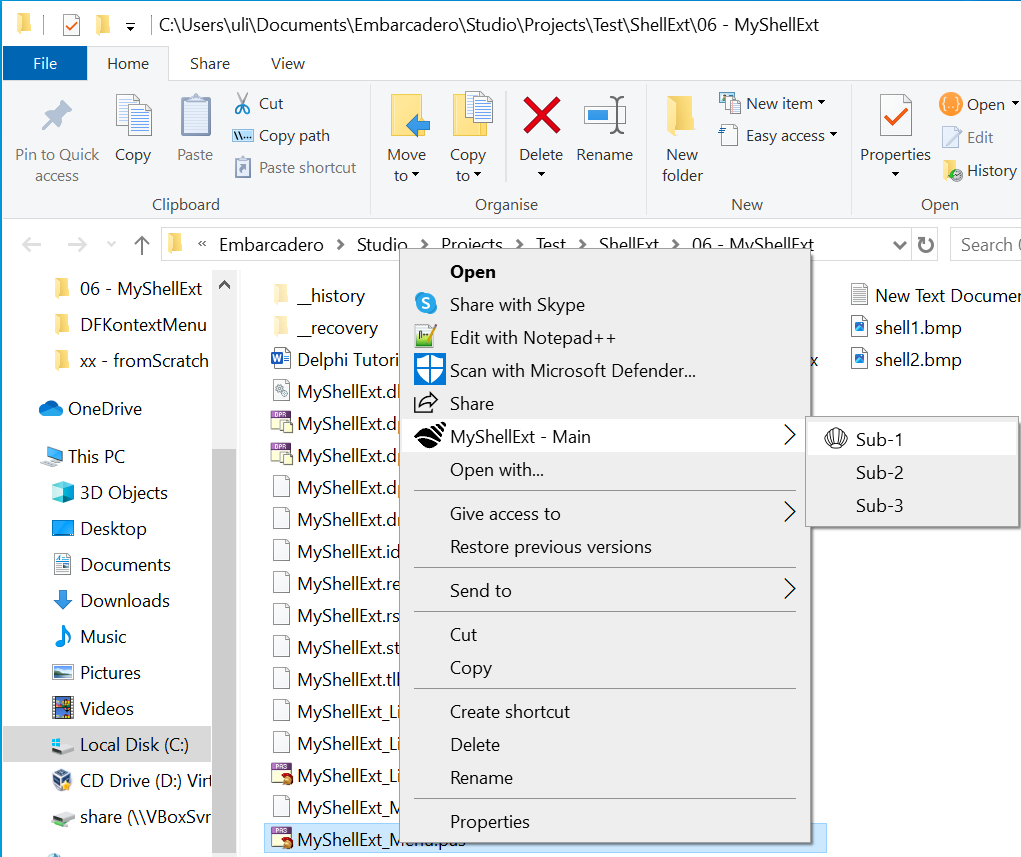 This article provides a step-by-step tutorial to create a context menu for Windows Explorer using Delphi. This is called a Context Menu Shell Extension which provides functionality to Windows Explorer when 'right-clicking' a file.
The illustration shows the result: the MyShellExt menu in Windows Explorer, with an icon and three submenus.
You need the Embarcadero Delphi programming environment. No special features or libraries are required.
You only need a basic understanding of how to create, compile and run Delphi code.
This tutorial provides step-by-step guidance for creating and implementing a COM object compiled into a dynamic-link library (DLL). The DLL contains the code for the shell extension. The tutorial also explains how to compile, register and unregister the DLL so that you can rebuild updated code.
Be careful: Windows Explorer provides the desktop, taskbar and file-management interface. A faulty shell extension can crash Explorer, making those parts of the Windows interface unavailable. If Explorer no longer starts, press Ctrl+Alt+Delete and select Task Manager. Start a new task named regedit to open Registry Editor, and remove the registry key where the DLL is registered, like: HKEY_CLASSES_ROOT\*\shell\MyShellExt. Then restart Explorer by running explorer as a new task in Task Manager.
Tutorial Structure
The tutorial is divided into the following parts to make the steps easier to follow. Part 1 is the most complex one as it provides all the necessary background to create an Active-X COM Object, how to register the produced DLL, and the more involved process of unregistering the DLL so that you can recompile the code.
Part 1 - Basic Context Menu
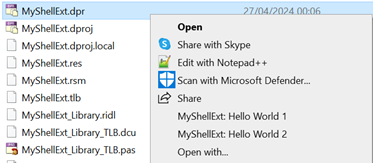
Part 1 addresses all fundamentals for a Shell Extension Context Menu and will provide two basic entries in the right-click menu for all files. In particular the following topics are addressed:
- Create an Active-X COM Object from scratch
- Delphi Compiler Options, in particular 64-bit selection
- Register the DLL
- Un-register the DLL and ability to delete/override the file
- All Delphi coding required
Part 2 - Select Multiple Files
Part 2 extends the code and functionality of the shell extension to be able to select multiple files.
Part 3 - Create Sub-Menus
Part 3 extends the code and functionality of the shell extension to allow sub-menus and icons for our menu items.
Part 4 - Bind to Particular File Extension
Part 4 extends the code and functionality of the shell extension to register it to a specific file extension. For example, .txt or .dll files.
Part 5 - Define Default Item
Part 5 extends the code and functionality of the shell extension to allow a sub-menu item to be the default item. This has two effects: double-clicking the MyShellExt item selects the default item, and the default item is displayed in bold.
Original article content, with grammar and spelling edited for readability. Illustrations and downloads are retained. Source page ↗